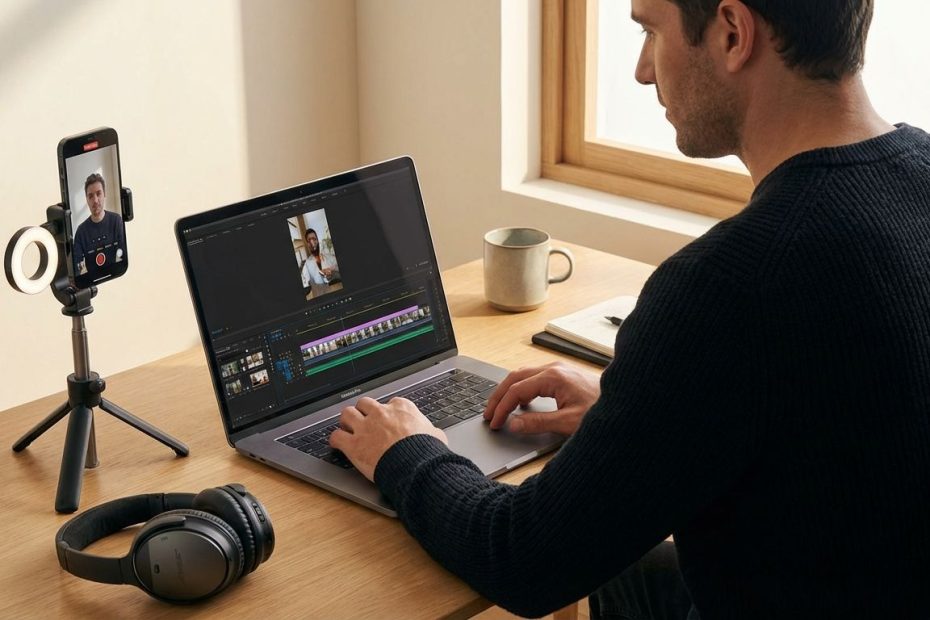
If social content is the job, five tools cover almost every workflow that matters: a fast mobile editor for vertical trends, a pro desktop NLE for polish, a Mac-optimized cutter for speed, an industry collaboration standard, and a text-based editor for captions and clips. Pick the right mix and you ship more consistently, keep quality predictable, and stop losing hours to preventable rework.
This guide breaks down the five tools that keep creators productive across TikTok, Reels, and YouTube, then answers the questions people keep searching: what to use for Shorts, what’s worth paying for, what’s still safe to adopt in 2026, and how to avoid pricing and licensing traps. Expect decision-ready recommendations, practical workflow notes, and buying guidance that matches how creators actually edit day to day.
Tool 1: CapCut
CapCut earns its slot because it is built around the reality of social publishing: vertical formats, speed, templates, and effects that match what audiences already recognize. When posting volume drives growth, CapCut keeps friction low, especially when edits need to happen on a phone, in a browser, or quickly between meetings. The interface is tuned for rapid cutting, captioning, trend formatting, and finishing without leaving the app.
The strongest CapCut advantage is throughput. You can move from raw clips to a publish-ready vertical in a short session because templates, effects, and auto-captioning reduce the number of manual steps. That matters when brand deals have tight turnarounds and you still need to maintain a consistent cadence across platforms. CapCut also fits creators who rely on repurposing, since quick resizing and social exports are a default behavior rather than an afterthought.
CapCut becomes less ideal when the job requires deep control, heavy multicam timelines, or precise color finishing. It can still get a clean result, yet complex projects often feel cramped compared to a desktop NLE. Many creators keep CapCut as the “speed layer” in the stack and hand off premium deliverables to a pro editor when necessary.
On pricing, CapCut’s official comparison page lists Pro at $19.99/month or $179.99/year, with a team plan starting around $24.99/month, and it also notes pricing can vary by region, platform, taxes, and promotions. That variability is where creators get frustrated, since the price shown on desktop, mobile, and web can differ, and renewals can change depending on the billing channel. Treat the in-app price as the source of truth right before purchase, then document it so there is no confusion at renewal time.
Tool 2: DaVinci Resolve (Free) And DaVinci Resolve Studio
DaVinci Resolve is the best “serious editor” option that still lets you stay on a budget. The free version is capable enough to cut real client work, and the learning you invest transfers cleanly into Studio if you decide to upgrade. Resolve also gives you a single environment that covers editing, color, audio, and finishing, which reduces app hopping when deadlines tighten.
Resolve shines when quality matters and you need control: clean trimming, reliable playback with optimized media, strong audio tools, and color workflows that can carry a project from social clips to long-form YouTube. It also handles more demanding formats than many lightweight editors without forcing you into subscription pricing. That combination is why Resolve often becomes the “backup plan” that turns into the primary editor once a creator starts taking bigger projects.
Resolve Studio adds advanced features and is widely treated as a one-time purchase. Pricing varies by retailer and package type, so it is common to see a standard price point repeated across the market while certain listings cost more due to different fulfillment formats. The buying rule stays simple: stick to official sources and reputable authorized dealers, confirm what exactly is being sold, and avoid gray-market keys that create licensing headaches later.
Resolve is not the quickest path to trendy, template-driven social edits. It is also more demanding on hardware than mobile-first apps, so a modest laptop may require proxy workflows or optimized media to keep playback smooth. If the goal is daily Shorts with heavy effects, Resolve works, but the time cost can outrun the benefit compared to a tool built for speed.
Tool 3: Final Cut Pro
Final Cut Pro remains a strong choice when you edit on Mac and value speed that stays consistent under pressure. It is tuned for Apple hardware, and that shows in timeline responsiveness, background rendering behavior, and how quickly you can move through a cut without fighting the system. For creators who live inside the Apple ecosystem, Final Cut often delivers the best “edit-to-export” time on the same machine.
Final Cut’s value case also improved for creators who want predictable budgeting. Apple continues to offer a one-time purchase option, and the new Apple bundle approach has shifted how many creators justify the cost. If you post regularly and need a reliable desktop cutter that stays fast across many projects, Final Cut keeps overhead low and output consistent.
Final Cut does require commitment to Apple hardware. If collaboration demands cross-platform project sharing with teams using Windows, or if a client expects Premiere project delivery, Final Cut can add friction. For many creators, the practical answer is simple: use Final Cut for speed and personal production, then deliver finished masters rather than project files when possible.
Tool 4: Adobe Premiere Pro
Premiere Pro earns its place because it remains a common standard in collaborative production. If you work with agencies, editors, motion designers, or teams already using Adobe tools, Premiere reduces handoff friction. It also integrates tightly with other Adobe apps, which matters when production includes graphics, audio cleanup, or motion elements that need quick iteration.
Premiere is a strong pick when you manage client work that comes with expectations: project-file delivery, shared workflows, predictable naming conventions, and compatibility with a broad talent pool. If you hire freelance editors, Premiere skills are widely available, which makes scaling output easier. That availability can matter more than personal preference when deadlines and volume rise.
The tradeoff is cost. Adobe lists Creative Cloud Pro regularly at $69.99/month (with promotional pricing sometimes shown alongside), and pricing depends on plan type and billing terms. When the content mix is mostly straightforward cuts and captions, the monthly spend can feel heavy, especially compared to one-time purchase options. The subscription still makes sense when the Adobe pipeline is central to the business, when collaboration drives revenue, or when client requirements force the choice.
A practical note for 2026 planning: Adobe Premiere Rush is not a safe “starter editor” recommendation anymore. Adobe states Rush is no longer available for download after September 30, 2025, and the app is discontinued on September 30, 2026, with technical support ending the same date. That means a creator building a workflow today should choose a tool with a clearer long-term path.
Tool 5: Descript
Descript belongs in a creator toolkit because social growth often comes from repurposing: turning one long recording into many short clips, then captioning them fast. Descript is built around text-driven editing, which matches how creators think about spoken content. When the raw material is dialogue, interviews, tutorials, podcasts, or commentary, a text-first workflow can cut hours off the week.
Descript’s strength shows up in the parts of editing that usually slow creators down: removing filler words, tightening phrasing, finding clip-worthy moments, and keeping captions aligned. You can move through a transcript quickly, make structural edits without hunting waveforms, then export assets that slot cleanly into a Shorts schedule. This is not about fancy transitions, it is about converting content into output at scale.
Descript should not replace a full NLE for every project. If the deliverable needs heavy effects, layered compositing, advanced grading, or detailed audio mixing, a traditional editor remains the better tool. The best use is a division of labor: Descript for transcript-based tightening and clip generation, then a finishing tool for final polish when needed.
What’s The Best Video Editing App For TikTok, Reels, And YouTube Shorts Right Now?
The best editing app for Shorts depends on the constraint you face most often: time, quality, or collaboration. If you publish frequently and need trend-ready speed, CapCut is usually the fastest route from idea to export because it centers templates, vertical formatting, and quick captions. If you need a cleaner, more controlled finish, Resolve or Final Cut gives better long-term consistency in image quality and audio control.
When output volume drives growth, the winning setup is rarely “one tool for everything.” CapCut handles rapid social edits and last-mile formatting, then a desktop editor handles the work that needs more precision. This split keeps you from forcing a heavy NLE to do quick template work, and it keeps a mobile editor from carrying projects it was not designed to manage.
If collaboration is the primary requirement, Premiere Pro can become the default even when other tools feel faster. That decision is often about reducing friction with teams, freelancers, and client delivery expectations. The fastest editor is the one that keeps revisions predictable and prevents handoff delays.
Is CapCut Pro Worth It, And How Much Does It Cost In 2026?
CapCut Pro is worth paying for when it directly increases posting volume or improves turnaround speed for paid work. If captions, premium effects, background tools, or export options reduce your editing time per video, the subscription becomes a productivity purchase rather than a creative luxury. The value rises when you post daily, run multiple channels, or manage brand deliverables where speed protects revenue.
CapCut lists Pro pricing at $19.99/month or $179.99/year, and a team plan starting around $24.99/month, with a clear note that pricing can vary by region, platform, taxes, and promotions. That last detail is the operational reality: the number you see on iOS may not match web pricing, and the renewal behavior depends on how you subscribed. Confirm the price in the same place you will renew, then capture a screenshot of the plan terms for reference.
If you post occasionally or only need basic cutting, CapCut free can carry the workflow. When paywalls interrupt a deadline, the cost is not the subscription, it is the missed upload window or the rushed alternative. Keeping a fallback editor installed reduces that risk and keeps production steady.
What’s The Best Free Video Editor That Doesn’t Feel Limited?
DaVinci Resolve is the strongest free editor when “not limited” means professional timeline control, solid audio handling, and legitimate finishing. You can build a real post-production workflow in Resolve without paying on day one, and the skill transfer remains useful if you upgrade to Studio later. For creators moving beyond basic cuts, Resolve free is often the point where editing stops feeling like a compromise.
CapCut free can also feel “not limited,” but in a different way. It feels powerful when you need social-native features like templates, quick captions, and fast formatting for vertical platforms. The limitation is not capability, it is predictability, since some features shift behind paid tiers over time and platform-to-platform behavior can change.
The decision comes down to what “free” needs to do for your business. If you need a serious desktop editor with long-term control, Resolve leads. If you need a quick social workflow that lives close to trends, CapCut remains the fast option, with the expectation that paid tiers may become necessary as needs grow.
DaVinci Resolve Studio: How Much Is It, And Is It Really A One-Time Purchase?
DaVinci Resolve Studio is widely treated as a one-time purchase, which is why creators compare it favorably to subscription tools. The confusing part is that pricing varies across retailers and package formats. You may see a commonly referenced standard price point, then see higher listings tied to different physical or fulfillment options sold by authorized resellers.
The practical buying playbook is straightforward. Purchase through Blackmagic Design directly or reputable authorized dealers, confirm what you are getting, and avoid unknown key sellers offering unusually low prices. The time saved by a “deal” can disappear instantly if activation fails, support becomes unavailable, or licensing cannot be verified during a deadline.
If you plan to keep editing for years, the one-time model can reduce long-term cost. The better metric is not the sticker price, it is how long the tool stays useful as the channel grows. Resolve tends to age well because its core editing, color, and audio capabilities remain relevant even as social formats shift.
Final Cut Pro Vs Premiere Pro: Which Is Better For Social Media Creators In 2026?
Final Cut Pro is a strong choice when you run a Mac-based workflow and value speed, stability, and a predictable cost structure. It stays responsive under real workloads, and it supports fast turnaround without demanding a monthly subscription to keep working. For many creators, that combination supports consistent output without budget surprises.
Premiere Pro is the better choice when collaboration and client expectations determine the editor. If projects need to move between freelancers, agencies, and production teams, Premiere’s widespread adoption reduces friction. It also fits creators who rely on Adobe’s broader toolchain and want tight integration across creative tasks.
Budget still matters because software cost competes with gear, travel, and paid distribution. Adobe lists Creative Cloud Pro regularly at $69.99/month, and that ongoing spend is easiest to justify when it unlocks revenue through collaboration and pipeline efficiency. If the work is primarily solo social production on Mac, Final Cut often wins on cost-to-output.
What Tool Is Best For Auto-Captions, Removing Filler Words, And Turning Long Videos Into Clips?
Descript is a strong choice when the content is speech-driven and the goal is repurposing. Text-based editing lets you tighten pacing quickly, remove filler words without hunting waveforms, and identify clip segments by scanning a transcript. That workflow aligns with how creators actually scale: record once, then publish many times across platforms.
For captions, speed matters, but accuracy and control matter too. A tool that lets you correct words quickly, adjust pacing, and keep readability consistent will outperform a faster tool that forces constant manual fixes. Descript keeps the focus on language and pacing, which usually drives retention more than flashy edits in talking-head formats.
Descript still works best as part of a stack. Use it to produce clean clips and captioned drafts, then move into a traditional editor if the finishing requires more layers, tighter visual design, or stronger color control. That handoff keeps production fast without sacrificing standards.
What Do Creators Complain About Most With Social Video Editors, And How Do You Avoid It?
The most common operational complaint is unpredictability: features shifting behind paywalls, pricing that varies by platform or renewal channel, and confusion about what is included in a plan. That frustration spikes during deadlines, when a previously available effect, caption option, or export setting becomes locked. The cost is not just money, it is schedule disruption and compromised output quality.
You avoid this by managing editing tools like production infrastructure. Keep a record of subscription terms at purchase, confirm renewal dates, and standardize billing channels so renewals do not surprise the budget. Maintain at least one fallback editor that can complete a project if a single tool changes availability or pricing mid-campaign.
Licensing confusion is another repeated issue, especially with paid pro tools sold through different storefronts and resellers. Buying through official sources and known authorized dealers reduces risk. If a deal looks unusually cheap, the probability of lost time later rises, and time is the asset that creators cannot recover.
Best Video Editing Tools For Social Media Creators
- CapCut for fast vertical edits and templates
- DaVinci Resolve for free pro-level desktop editing
- Final Cut Pro for fast Mac editing
- Premiere Pro for collaboration and Adobe workflows
- Descript for text-based editing, captions, and clips
Build A Stack That Ships More Videos This Week
The strongest creator workflows do not chase one perfect editor, they combine tools that win at specific jobs. Use CapCut when speed and vertical formatting drive results, then lean on Resolve, Final Cut, or Premiere when quality control, audio, and finishing determine retention and client satisfaction. Add Descript when the content is speech-driven and repurposing multiplies output without multiplying recording time. Lock in predictable billing, document subscription terms, and keep a fallback editor installed so a pricing change never blocks a deadline. Make these decisions once, then focus energy on publishing cadence, creative testing, and tighter production standards.

Jim DePalma is a media and marketing strategist and consultant with deep experience in digital media and brand growth. A former leader at Westinghouse Electric (during the CBS acquisition and Viacom integration) and at CBS MarketWatch, he now advises companies on digital strategy, M&A-driven transformation, and audience expansion.